
ChatGPT has changed a lot since 2025.
In 2026, it’s not just a “chatbot” anymore.
It’s a full workspace with tools: web search, files, images, projects, memory, and even video generation (Sora), depending on your plan.
What is ChatGPT?
ChatGPT is an AI assistant you can use to write, plan, learn, research, analyze files, and generate images (and in some cases, video with Sora).
You don’t need to be tech-savvy.
You just type a message (prompt), and it responds instantly. It works in your browser, no download needed. There’s also a Plus (20$/month) and Pro version (200$/month) with faster speed and more advanced features.
Whether for work, school, or fun, ChatGPT can be your everyday digital assistant.
How to start using ChatGPT
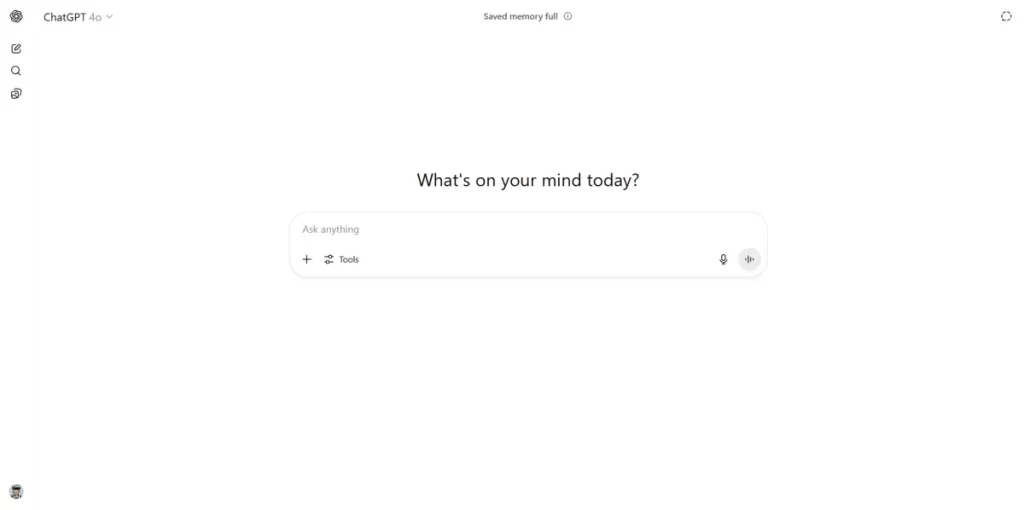
Getting started with ChatGPT is quick and easy, you just need a device with internet access.
- Go to chatgpt.com
- Click on “Sign up for free” (use your Google, Apple, or email account)
- Once logged in, type your question or request in the chat box
- Press Enter and ChatGPT will reply instantly
There’s nothing to install, and the free plan is enough for most people. You can start by asking it something simple or click on one of ChatGPT’s suggestions.
Exploring ChatGPT Dashboard
A. Left Sidebar: Your Chat History and Settings
1. Navigation Panel: New Chat, Search, and Library
At the very top of the sidebar you’ll see your main navigation panel. Here’s what you’ll find:
- OpenAI logo: Click it anytime to start a new chat
- Window icon (top-right corner): Closes the sidebar to free up space
- New Chat: Also opens a blank new chat
- Search chats: Find old chats by typing keywords
- Library: View the images you’ve generated with ChatGPT
This section helps you move fast and stay organized. Whether you’re switching topics, revisiting a past conversation, or saving space on your screen, this panel is where it all begins.
2. Sora
Sora is OpenAI’s built-in image and video generator. Just describe what you want, and it turns your words into visuals.
Here’s what you can do with Sora:
- Create product mockups without hiring a designer
- Generate ad visuals, YouTube thumbnails, or Instagram content
- Visualize concepts for a pitch, presentation, or school project
- Bring story ideas or characters to life
- Make fun or surreal images for social media posts
3. GPTs
GPTs are custom versions of ChatGPT made for specific tasks like writing, coding, or language learning. Free users can explore and use GPTs made by others, but can’t create their own.
Here’s what you can do with GPTs as a free user:
- Use a job application assistant, study buddy, or personal trainer GPT
- Explore tools made for specific industries or tasks (e.g. interior design, SEO audits)
- Search by keyword or category to find what fits your needs
- Use them instantly, without crafting detailed prompts yourself
Just click “Explore GPTs” in the sidebar and test out the ones that catch your eye.
4. Chat History
The Chat History section helps you manage all your past conversations in one place. Free users can organize, edit, or remove chats using simple tools built into the sidebar.
Here’s what you can do:
- Click any chat to reopen and continue the conversation
- Hover over a chat to reveal the three dots icon
- Click the three dots to rename or delete the chat
- Rename chats with keywords like “TOPIC – Title” or add * to make them easier to find later on “Search chats” or using Ctrl + F
- Delete removes the chat from your sidebar immediately, it won’t appear in your history anymore and can’t be recovered
- All chats are auto-saved and synced across your devices
B. Profile Menu and Settings Panel
1. Upgrade Plan
The Upgrade Plan option appears when you click your profile icon in the bottom left. This takes you to the page where you can explore paid options like ChatGPT Plus or Pro.
Here’s what you can generally expect:
- Faster responses and more reliable performance
- Access to advanced tools and features
- Priority use during high-traffic times
As of now, pricing starts at $20/month for individuals and $200/month for power users, but this may change. Since OpenAI updates their plans and features often, it’s best to check the upgrade page directly for the latest details on what each paid version includes.
2. Customize ChatGPT
The Customize ChatGPT option lets you set preferences so the chatbot responds in a way that fits your needs, without repeating yourself in every new chat.
Here’s what you can do:
- Add details about who you are and what you need help with
- Set your preferred tone (casual, concise, detailed, etc.)
- Share your typical tasks like writing, planning, or coding
- Guide how ChatGPT should think or behave when helping you
It’s useful if you want more consistent replies or use ChatGPT for work, personal projects, or repetitive tasks. You can update or remove your custom setup anytime.
3. Settings
- General: Change theme (dark/light), interface language, voice, and typing suggestions
- Notifications: Get alerts when a reply is delayed
- Personalization: Enable or disable memory and custom instructions
- Connected Apps: Link tools like Google Drive or OneDrive
- Data Controls: Turn off training data sharing, export your data, or delete archived chats
4. Help
- FAQs: Answers to the most common issues and features
- Troubleshooting: Fix login problems, chat errors, or performance issues
- Updates and changelog: See what’s new in the latest version
- Report a bug or give feedback directly to OpenAI
- Learn more: Access guides and documentation for deeper learning
5. Log out
The Log Out option is the last item in your profile menu and lets you safely exit your account, especially useful on shared or public devices. Here’s what happens when you log out:
- Your chat history stays saved to your account (nothing is lost)
- You’ll be redirected to the login page after logging out
- You can log back in anytime with your email or connected account
- It ensures your data stays private if someone else uses the device
C. Main Chat Window
The Main Chat Window is where everything happens—typing prompts, getting replies, using tools, and interacting with ChatGPT. It’s designed to feel simple, but there’s a lot packed into this space once you know where to look.
Here’s what you’ll find:
- A message box where you type your questions or ideas
- A plus icon to upload images, files, or connect cloud storage
- A tool bar with options like image generation, web search, and writing
- Voice options to speak or hold a live conversation with ChatGPT
In the next sections, we’ll break down each of these features so you can get more out of every chat.
1. Typing Your Prompt: The Message Box
At the bottom of the chat window, you’ll see the message box—this is where you type your prompt, question, or request. It works like a regular chat or search bar, but way more powerful.
Here’s how to use it:
- Type your message and press Enter to send
- Use Shift + Enter to add a line break without sending
- You can write casually or give clear step-by-step instructions
- Ask follow-up questions—ChatGPT remembers the context in the same chat
It’s designed to be simple, so you can focus on your idea, not formatting. Whether you’re writing one line or a detailed task, this is where the conversation starts.
2. Add Files and Media: The Upload Button
- Upload images, videos, PDFs, and text documents
- Attach audio clips, like voice memos
- Connect Google Drive or OneDrive to pull in files from the cloud
3. Special Tools Bar: Image, Search, Write & More
Below the message box, you’ll see the Special Tools Bar, a set of buttons that unlock extra features beyond normal chatting. Here’s what each tool does:
- Think for Longer: Gives more thoughtful and accurate answers for complex tasks
- Run Deep Research: Builds in-depth reports with stats, studies, and references
- Create an Image: Turn a simple description into a custom AI-generated visual
- Search the Web: Manually trigger a web search—more reliable than hoping ChatGPT decides on its own when live info is needed
- Canvas: Opens a full-screen editor for writing stories, articles, emails, or even coding apps and websites. You can highlight text to edit, rewrite, or delete it with one click.
4. Dictate and Voice Mode: Talk Instead of Type
On the right side of the message box, you’ll find two voice options: Dictate and Voice Mode. These let you speak instead of type, great on your phone or thinking out loud.
Here’s how each one works:
- Dictate: Press and hold the microphone icon while you speak. ChatGPT will convert it into text and respond like a normal message. Ideal for quick thoughts or when typing feels slow.
- Voice Mode: Starts a real-time, back-and-forth conversation. You talk, it replies out loud. It feels more like chatting with a human than typing in a box.
Both features are especially useful on mobile, but work on desktop too, as long as you allow microphone access.
D. Top Right Bar: Share and Chat Actions
At the top right of each chat window, you’ll see two icons: Share and a three dots menu (⋯). These give you quick tools to manage or share the current conversation.
Here’s what you can do:
- Share: Create a public link to share the chat with others (preview before sending)
- Three Dots Menu (⋯):
- Archive the chat to clean up your sidebar without deleting it
- Report the chat if something looks wrong or unsafe
- Delete the chat permanently from your history
These options help you keep your chat list tidy, share useful threads, or flag issues when needed.
What You Can Use ChatGPT For
Get Help With Work Tasks
ChatGPT can make your workday easier by handling repetitive tasks, speeding up writing, and helping you think through problems. It’s like having a smart assistant that never gets tired.
Here’s how it can support your work:
- Draft emails, reports, or meeting notes
- Polish your writing for clarity and professionalism
- Brainstorm strategies, content ideas, or problem solutions
- Summarize long documents or client feedback
- Prepare talking points or outlines for presentations
It’s useful whether you work solo or on a team, especially if you want to save time and stay sharp.
Problem Solving
ChatGPT can help you solve everyday problems by giving quick suggestions, step-by-step instructions, or helping you think through options. It’s not just for writing, use it like a smart second brain. Here’s how:
- “My sink is clogged. What are the safest things I can try before calling a plumber?”
- “I got a flat tire. Can you walk me through how to change it?”
- “My laptop won’t connect to Wi-Fi. What are some fixes I can try?”
- “I only have eggs, rice, and spinach. What can I cook for dinner?”
- “My phone won’t charge. What should I check before replacing the cable?”
It’s not perfect, but it’s surprisingly helpful for quick solutions and guidance.
Learn Faster
ChatGPT is like having a personal tutor on demand. You can use it to break down complex topics, speed up your reading, or clarify things you didn’t fully understand. It’s especially helpful when you’re stuck, learning something new, or want to save time.
Here’s how it can help you learn faster:
- Explain difficult concepts in simple, clear language
- Summarize long articles or lessons into short key points
- Break topics into step-by-step explanations
- Create flashcards or quiz questions for quick review
- Translate or reword content to better understand it
It’s great for students, professionals, or anyone curious—no textbook jargon required.
Research
ChatGPT can help you kickstart real research tasks by gathering structured information, surfacing key data, or summarizing sources. It’s ideal for marketing research, thesis prep, or understanding a topic deeply before diving into trusted sources.
Here’s how it can support your research:
- Outline market trends, competitors, or customer insights
- Find statistics, case studies, or data summaries
- Generate report drafts for school, business, or content work
- Organize key points from multiple sources
- Translate complex studies into plain English
While you should always double-check sources, ChatGPT helps you save time, frame your topic, and know exactly what to look for next.
Think, Plan, and Organize
ChatGPT is great for clearing mental clutter and turning vague ideas into structured plans. Whether you’re organizing your day, planning a project, or thinking through a decision, it can help you map things out clearly and quickly.
Here’s how it can support your planning and thinking:
- Create to-do lists, schedules, or weekly goals
- Break big projects into step-by-step tasks
- Outline content calendars or event plans
- Organize thoughts into structured formats (e.g., pros/cons, mind maps)
- Prioritize tasks or brainstorm solutions for specific problems
It’s like a second brain when you need clarity—perfect for work, personal goals, or creative planning.
Explore Your Creative Ideas
You don’t need to be an artist or writer to create, ChatGPT makes it easy to explore ideas, get inspired, and bring creative projects to life. Whether you’re brainstorming or stuck, it helps you move forward faster.
Here’s how it can boost your creativity:
- Generate story ideas, characters, or plot twists
- Write poems, song lyrics, or slogans
- Brainstorm names for a brand, product, or project
- Describe scenes to turn into AI-generated images
- Create fun content like jokes, games, or skits
It’s like a creative partner who never runs out of ideas—great for writing, designing, or just having fun.
How to use ChatGPT Effectively
There are several smart ways to improve your results with ChatGPT, even if you’re only using the free version. With a few simple habits, you can get clearer answers, better content, and save a lot of time. Here’s how:
- Start with prompt engineering
- Stick to the same chat to keep context alive across follow-ups
- Break down big tasks: outline first, then build each part (like writing in steps)
- Customize ChatGPT and use its memory feature so it can remember key info about you or your style over time (more on that later)
- Save and reuse prompt templates that gave you great results
What is Prompt Engineering
Prompt engineering is the skill of writing clear, structured instructions that guide ChatGPT to give you the best possible response. It’s not about coding or being technical, it’s about knowing how to ask the right way.
A small change in how you phrase something can completely change the output. Whether you’re writing emails, generating ideas, or planning content, mastering prompts helps you save time and get better results.
1. Be Clear About the End Goal
ChatGPT can only give you what you ask for—so make sure your goal is clear. Don’t just say, “Help me write something,” or “Explain this.” Instead, describe exactly what you need, who it’s for, and how you plan to use it.
Here’s how to do it well:
- Write the output you want: “Write a 3-line Instagram caption…”
- Mention the purpose: “…to promote our new product to first-time buyers.”
- Add details: tone (funny, professional), format (list, paragraph), or style
Think of the end result you want. The more specific you are, the better the output will match your expectations.
2. Set the Role and Tone
You can guide ChatGPT’s style by telling it who to act as and how to sound. This changes the voice, language, and depth of the reply—perfect for adapting to different audiences.
Here’s how to do it:
- Start with: “Act as a marketing expert…” or “You’re my writing coach…”
- Add tone: “Write in a friendly and casual way” or “Keep it professional and concise”
- Combine both: “Act as a customer support agent. Reply politely and reassuringly.”
This helps ChatGPT match the mood, formality, and personality you need—whether it’s a joke, a job post, or a client email.
3. Use Lists, Formats, and Examples
ChatGPT follows structure well, so if you want organized output, show it what format to follow. This is one of the easiest ways to get clearer, more useful answers.
Here’s how to do it:
- Say: “Give me a bullet-point list of pros and cons”
- Or: “Write this as a 3-paragraph email: intro, main offer, call to action”
- Ask for tables, outlines, step-by-step guides, or numbered lists
- Provide an example or famous model:
- “Follow the AIDA copywriting framework”
- “Write in the tone of Steve Jobs presenting a new product”
- “Use the 5-paragraph essay structure”
- “Summarize it in the style of Harvard Business Review”
Using familiar formats or references gives ChatGPT clear direction and saves you editing later.
4. Give Context When It Helps
After telling it what you want, a smart move is to ask:
“Ask me all the questions necessary to do this perfectly”
It will respond with a list of questions to clarify things like:
- Who the output is for
- What the purpose or desired outcome is
- Tone, style, and format preferences
- Any specific details, examples, or limits
If you don’t know some of these answers yet, you can even ask ChatGPT to suggest them first, like the best audience, tone, or output format.
This approach can be time-consuming since answering all the questions may take a while, so I recommend using it only for important, long-form tasks, like writing a full guide, building a business asset, or setting up a custom assistant you’ll reuse often.
5. Tweak and Refine
Don’t expect the perfect answer on the first try—ChatGPT works best when you treat it like a draft partner, not a one-shot solution. If something feels off, ask it to improve, simplify, rewrite in a different tone, or give alternatives. You can say things like:
- “Can you make this more casual?”
- “Shorten this to under 100 words”
- “Give me 3 variations of this idea”
You can also paste your own content and ask for feedback or edits. Instead of starting over, build on the output step by step. The more you refine, the more aligned the results will be with your voice, goals, or audience.
Keep the Same Chat to Preserve Context
One of the easiest ways to improve ChatGPT’s answers is to simply keep using the same chat for the same topic. Within a single thread, ChatGPT remembers what you’ve said earlier, so your follow-up questions feel smoother and more accurate. You don’t have to repeat the setup or restate details every time.
For example, if you’re working on a project outline, you can ask for edits, summaries, or new sections, all in the same conversation. But once you start a new chat, all previous context is gone. So for anything ongoing, like content writing, strategy, or planning, stick to the same thread to save time and get more coherent, personalized results.
Break Big Tasks Into Smaller Steps
If you try to ask everything in one prompt like “Write a full ebook”, the result is usually incomplete or gets cut off.
- Start with the idea: “Give me 5 ebook ideas on productivity for freelancers”
- Choose one and ask for titles: “Give me 5 title options for idea 3’”
- Build the index: “Create a chapter outline with 3–4 subchapters for title 2’”
- Write chapter by chapter: “Write chapter 1.1 (max 300 words)”
- Add structure inside chapters: “Suggest 2–3 subheadings for chapter 1.2”
- Write paragraph by paragraph: “Write a short paragraph for subheading 1’”
- Refine each step as you go: “Rewrite this to sound more casual and friendly”
This way, each step builds on the last: clear, consistent, and effective.
Customize ChatGPT and Use Memory (For Later Reuse)
Setting it up to match your style and goals will save you tons of time. With the Customize ChatGPT option, you can tell it how to respond by default, without repeating yourself. And with the Memory feature (when enabled), it can remember useful facts across chats.
Here’s what you can do:
- Set your preferred tone, writing style, or role
- Add info about your work, audience, or typical tasks
- Enable memory to remember facts like your story, goals or situation
- Update or delete saved info anytime from settings
It’s ideal for long-term use, recurring projects, or simply getting replies that feel more “you.”
Save and Reuse Your Best Prompts
When you find a prompt that works really well, don’t lose it—save it. Reusing your best prompts saves time, keeps your tone consistent, and gives you a head start on future tasks.
Here’s how to do it:
- Copy great prompts into a Google Doc, Notion page, or notes app
- Organize them by category (e.g. writing, marketing, brainstorming)
- Add notes, examples, or results so you remember why they worked
- Turn repeatable ones into fill-in-the-blank templates
- Refine and update them as you improve over time
Having a personal prompt library means you don’t have to start from scratch every time—and your results just keep getting better.
Prompt Templates You Can Start Using Today
Not sure how to start your prompt? These ready-made templates will help. They’re designed to save you time, get better results, and cover common tasks like writing, learning, planning, and more. You can copy them as-is or tweak them to fit your style and goals. Feel free to adjust the tone, audience, or format as needed.
Work Tasks Prompt Templates
- “Prioritize my tasks for {project or day} based on deadlines and importance.”
- “Turn these meeting notes into a structured action plan: {paste text}”
- “Draft a polite follow-up email after a missed meeting with {client/team}.”
- “Help me prepare a 3-slide summary of {project/topic} for a quick update.”
- “Organize this unstructured info into a clear to-do list: {paste content}”
- “Suggest 3 time-saving systems or tools for managing {type of work}.”
- “Give me a template to document processes for {recurring task}.”
- “Summarize the key insights from this customer feedback: {paste comments}”
- “Help me schedule a productive workweek with blocks for {tasks}.”
- “Break down how to train a new hire for {role/responsibility}.”
Problem Solving Prompt Templates
- “I’m having trouble with {situation/problem}. What are possible causes and quick fixes?”
- “Give me step-by-step instructions to solve {technical or everyday issue}.”
- “What should I do if {unexpected problem} happens again?”
- “Suggest 3 alternative solutions for {challenge or obstacle} with pros and cons.”
- “Help me troubleshoot {device/software/process} that’s not working as expected.”
- “What’s the safest and fastest way to handle {urgent issue}?”
- “Write a polite message/email to address {problem or conflict}.”
- “What are common mistakes people make when dealing with {problem}?”
- “Give me a checklist to prevent or fix {problem} in the future.”
- “Explain how to fix {problem} as if I were a complete beginner.”
Writing and Editing Prompt Templates
- “Ask me everything you need to write a high-converting email introducing my {product or service} to the right audience.”
- “Help me define my ideal client avatar, ask me the right questions to clarify who they are, what they struggle with, and what they want.”
- “Brainstorm 5 different angles to promote my {offer/product/service} to {audience}.”
- “Write a clear, benefit-focused description of my {product or service} for {website/social media/email}.”
- “Create a blog outline for {topic} written for {audience} who want {desired outcome}.”
- “Turn this outline into a 3-paragraph blog post with a friendly, helpful tone.”
- “Rewrite this text to sound more confident and less robotic: {paste text}”
- “Shorten this message and make it sound natural for {platform}: {paste text}”
- “Write 3 variations of this headline with different tones: {paste headline}”
Learning and Studying Prompt Templates
- “Explain {topic} to me like I’m 12 years old.”
- “Summarize this text in simple language: {paste text}”
- “Quiz me on {topic} with 10 multiple choice questions and show the correct answers after each one.”
- “Turn this explanation into a list of key takeaways: {paste text}”
- “Create a study guide for {exam/topic} with bullet points and examples.”
- “Compare {concept A} and {concept B} in a table with definitions and use cases.”
- “Ask me questions to test my understanding of {topic}, and explain anything I get wrong.”
- “Give me 3 real-world examples to help me better understand {complex idea or theory}.”
- “Break down {topic} into a step-by-step learning plan for one week.”
Planning and Productivity Prompt Templates
- “Help me plan my week for maximum productivity based on these goals: {list goals}”
- “Create a 30-day habit tracker to help me stay consistent with {habit}.”
- “Suggest a realistic morning routine for someone who wants to improve {goal}.”
- “Break down my big goal ({describe}) into monthly, weekly, and daily actions.”
- “What’s the most efficient way to reach {goal} given I only have {X hours/week}?”
- “List common time-wasters in {my type of work/lifestyle} and how to avoid them.”
- “Give me a weekly review template to track my progress and reflect.”
- “Design a minimalist schedule that balances work, learning, and rest.”
- “Suggest 3 productivity methods that fit someone who {personal trait or challenge}.”
Communication and Messaging Prompt Templates
- “Write a polite and clear follow-up message after {context or delay}.”
- “Draft a message to explain {situation} to {coworker/client/friend} without sounding defensive.”
- “Rephrase this message to sound more assertive but still respectful: {paste text}”
- “Write a short message inviting someone to collaborate on {project or idea}.”
- “Create a message that declines {offer/invitation} nicely without burning bridges.”
- “Turn this long explanation into a simple, 2-line summary for a busy reader.”
- “Help me craft a reminder message that nudges someone without being annoying.”
- “Improve the tone of this email to sound more warm and professional: {paste email}.”
- “Write a DM to introduce myself and what I do to a new connection.”
Creative and Brainstorming Prompt Templates
- “Brainstorm 10 unique ideas for {topic or project} with a fun tone.”
- “Give me unusual but practical approaches to solve {problem or challenge}.”
- “Suggest creative ways to promote my {product/service} that don’t involve ads.”
- “Help me come up with metaphors or analogies to explain {complex concept}.”
- “List 5 unexpected angles I could explore in a {blog/video/podcast} about {topic}.”
- “Combine {theme 1} and {theme 2} into a fresh content idea.”
- “What would {famous creator/personality} do to make this more interesting?”
- “Give me creative prompts to overcome blank page syndrome for {writing/drawing}.”
- “Invent 3 new formats I can use to share my ideas on {platform}.”
ChatGPT paid plans in 2026
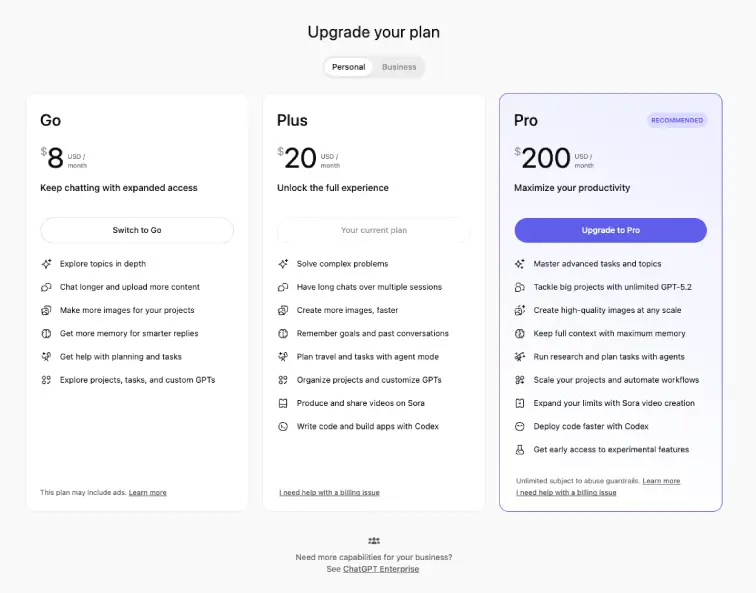
Plans, pricing, and usage limits change frequently.
For the most up-to-date details, check the official ChatGPT pricing and plans page.
Personal plans (for individuals)
| Plan | Best for |
|---|---|
| Go — $8/mo | You use ChatGPT most weeks and want more breathing room than Free (longer chats, more uploads/images), but you don’t need heavy “pro” workflows. Great if you’re mostly doing writing, studying, planning, and light content. |
| Plus — $20/mo | You use ChatGPT for work and want a smoother daily experience: longer sessions, stronger tools (files/images), memory, projects, and faster output. Best for freelancers, creators, marketers, and consultants who want “everything you actually use” without paying Pro. |
| Pro — $200/mo | You’re a power user: big projects, heavy daily usage, advanced agents/research workflows, high-volume image/video creation, and you want maximum limits + early features. Best for agencies, operators, and people who run core business workflows through ChatGPT. |
Quick decision rule:
- If you feel “blocked” only a few times a month → Go
- If you feel blocked a few times a week → Plus
- If ChatGPT is part of your delivery process every day → Pro
Business plans (for teams)
| Plan | Best for |
|---|---|
| Plus (Business) — €23/user/mo | Small teams that want Plus features but paid as a business expense. Good when you don’t need deep admin/security features yet, but want a clean way to cover staff usage and keep work consistent. |
| Business — €34/user/mo | Teams that need a real workspace: privacy controls, team sharing (projects/GPTs), integrations, and smoother collaboration. Best when ChatGPT touches client work, internal processes, or multiple people need standardized outputs. |
Quick decision rule:
- Team of 2–5, no strict security requirements, mainly personal productivity → Plus (Business)
- You need shared workflows, governance, integrations, or “this is now a team tool” → Business
Limitations of Free ChatGPT (Updated for 2026)
The Free version of ChatGPT is still useful, but in 2026 it’s clearly a trial-level plan.
Since the introduction of the Go ($8/month) tier, Free usage is more limited and designed mainly for light, occasional use. Free users typically face:
- Very limited daily usage with faster rate limits than paid plans
- No custom GPT creation (you can only use public ones)
- No Projects and very limited file uploads or image usage
- No Codex or advanced coding tools
- Deep Research access is extremely limited compared to paid plans
- Memory is minimal or disabled, so preferences don’t persist well
- Lower priority during peak hours, leading to slower or blocked responses
Free is best for testing ChatGPT or solving quick, one-off tasks. If you use it consistently, you’ll hit limits fast.
When Should You Upgrade Plans?
Upgrading isn’t about “more features.” It’s about less friction.
- Upgrade to Go ($8/month) if:
You like ChatGPT but hit Free limits often. You want longer chats, more uploads, and smoother daily use without needing advanced workflows. - Upgrade to Plus ($20/month) if:
You use ChatGPT for work (content, SEO, clients, research), rely on files or projects, and want memory, better tools, and consistent performance.
If Free feels restrictive but Plus feels like overkill, Go is now the clear middle step. If ChatGPT saves you time every week, Plus usually pays for itself quickly.
Final Thoughts on How to Use ChatGPT
Using ChatGPT effectively isn’t about writing “perfect” prompts.
It’s about learning how to think with the tool.
The better you guide it, the more it gives back, whether you’re solving a problem, writing content, or planning your next move.
This isn’t about hacking the system. It’s about collaborating smarter, asking better questions, and letting the AI extend your thinking.
Master that mindset, and even the free version becomes a serious upgrade to your brain.